
The Complete Guide to DMARC Monitoring in 2026: Protect Your Domain & Boost Email Deliverability

What is DMARC Monitoring?
DMARC monitoring is the ongoing process of collecting, analyzing, and acting on DMARC (Domain-based Message Authentication, Reporting, and Conformance) reports sent by email receivers. These reports reveal which emails are being sent from your domain, whether they’re passing authentication checks, and if any unauthorized sources are attempting to use your domain for malicious purposes.
Think of DMARC monitoring as your domain’s security camera system. Just as security cameras show who’s entering your building, DMARC reports show who’s sending email using your domain name—and whether they’re authorized to do so.

Why DMARC Monitoring Matters in 2026
Email authentication requirements have dramatically shifted in the past year. What was once a “nice to have” security measure is now mandatory for anyone sending bulk email to major providers.
The 2024-2026 Email Authentication Revolution
In February 2024, Google and Yahoo implemented strict authentication requirements for bulk senders (those sending 5,000+ emails daily). Microsoft followed suit in May 2025 with similar requirements for Outlook.com. These requirements include:
- SPF and DKIM authentication must be properly configured
- DMARC policy must be published (even if set to p=none)
- Spam complaint rates must stay below 0.3%
- Valid reverse DNS records for sending IPs
- Easy unsubscribe mechanisms with one-click options
Real-World Impact: What Happens Without DMARC Monitoring

What DMARC Reports Tell You
DMARC reports come in two types, each serving a distinct purpose:
1. Aggregate Reports (RUA)
Aggregate reports are sent daily by email receivers and provide high-level statistics about your email traffic:
- Volume data: How many emails were sent from your domain
- Source IPs: Which servers are sending on your behalf
- Authentication results: Pass/fail rates for SPF and DKIM
- Alignment status: Whether the From domain matches SPF/DKIM domains
- Receiver actions: What the receiving server did with the email (delivered, quarantined, rejected)
2. Forensic Reports (RUF)
Forensic reports are sent in real-time when an email fails DMARC authentication. They include:
- The complete email headers
- Sometimes the full message body
- Detailed failure reasons
- Specific authentication check results
How to Implement DMARC Monitoring: Step-by-Step Guide
Setting up DMARC monitoring is a multi-step process that requires careful planning and execution. Here’s how to do it right:
1 Audit Your Current Email Infrastructure
Before implementing DMARC, you need to understand all the sources that send email on your behalf:
- Your primary email server (Office 365, Google Workspace, etc.)
- Marketing automation platforms (HubSpot, Mailchimp, Marketo, etc.)
- Transactional email services (SendGrid, Postmark, etc.)
- CRM systems that send email
- Internal applications that send notifications
- Third-party services (invoicing, support ticketing, etc.)
2 Set Up SPF and DKIM Authentication
DMARC relies on SPF (Sender Policy Framework) and DKIM (DomainKeys Identified Mail) to authenticate emails. You must configure both before implementing DMARC.
SPF Configuration
SPF is a DNS record that lists which IP addresses are authorized to send email from your domain:
This example authorizes Google Workspace, Microsoft 365, and Mailchimp to send on your behalf.
DKIM Configuration
DKIM adds a cryptographic signature to your emails. Each sending service provides their own DKIM records to add to your DNS:
3 Create Your DMARC Record
Start with a monitoring-only policy (p=none) to collect data without affecting email delivery:
Let’s break down what each tag means:
| Tag | Purpose | Example Value |
|---|---|---|
| v | Protocol version | DMARC1 |
| p | Policy for failed messages | none, quarantine, or reject |
| rua | Email address for aggregate reports | mailto:dmarc@yourdomain.com |
| ruf | Email address for forensic reports | mailto:forensic@yourdomain.com |
| pct | Percentage of messages to filter | 100 (default) |
| adkim | DKIM alignment mode | r (relaxed) or s (strict) |
| aspf | SPF alignment mode | r (relaxed) or s (strict) |
4 Set Up Your Monitoring Tool
Raw DMARC reports are XML files that look like this:
google.com noreply-dmarc-support@google.com 1234567890 1707609600 1707696000 …
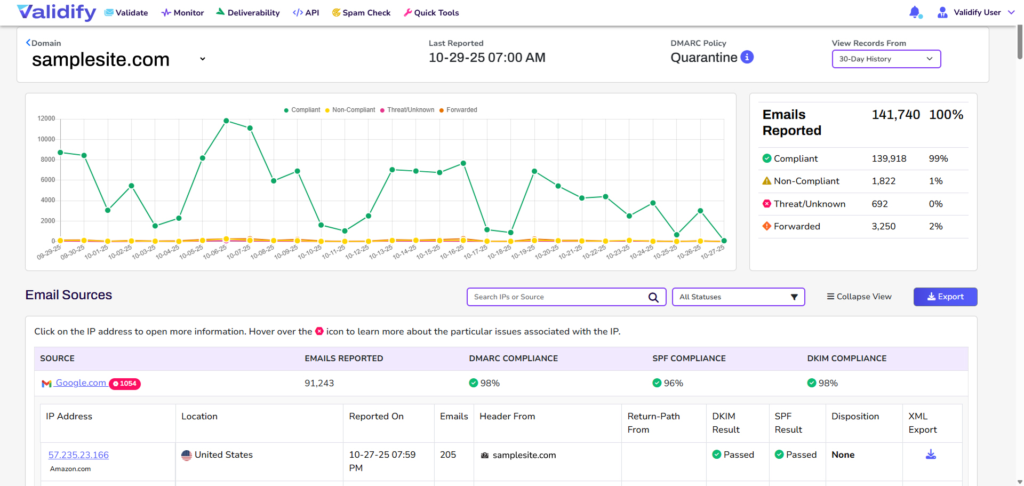
A monitoring tool transforms this data into actionable dashboards showing:
- Sending sources and their authentication rates
- Daily email volume trends
- DMARC, SPF, and DKIM pass rates
- Potential spoofing attempts
- Alignment issues requiring attention

5 Monitor and Analyze for 2-4 Weeks
During this monitoring phase (p=none), you’re collecting data without blocking any emails. Focus on:
- Identifying all legitimate sending sources and ensuring they’re properly authenticated
- Fixing authentication failures for your known senders
- Spotting unauthorized senders attempting to spoof your domain
- Understanding your baseline pass rates and email volume
6 Move to Quarantine Policy
Once you’ve achieved 95%+ pass rates for legitimate email, upgrade to quarantine:
This tells receivers to send failing emails to the spam folder. Monitor carefully for 2-4 weeks to ensure no legitimate email is being quarantined.
7 Achieve Full Enforcement with Reject Policy
The final step is moving to p=reject, which blocks all emails that fail DMARC:
Common DMARC Monitoring Challenges (And How to Solve Them)
Challenge 1: SPF Record Exceeding the 10 DNS Lookup Limit
The Problem: SPF has a hard limit of 10 DNS lookups. Large organizations often exceed this, causing SPF to fail.
The Solution: Use SPF flattening or SPF macros to consolidate your SPF record. Monitoring tools like Validify can automatically detect when you’re approaching the limit.
Challenge 2: Third-Party Services Not Properly Authenticated
The Problem: Marketing tools, CRMs, and other third-party services often send from their own IPs without proper DKIM alignment.
The Solution: Work with each vendor to either:
- Add their IPs to your SPF record
- Configure custom DKIM signing with your domain
- Use a subdomain (like mail.example.com) for their sending
Challenge 3: Forwarded Email Breaking Authentication
The Problem: When emails are forwarded, SPF often breaks because the forwarding server’s IP isn’t in your SPF record.
The Solution: This is where DKIM becomes critical. DKIM signatures survive forwarding, so ensure all your sending sources use DKIM. Use relaxed alignment (adkim=r) to handle subdomain scenarios.
Challenge 4: Report Volume Overwhelming
The Problem: High-volume senders can receive thousands of DMARC reports daily, creating inbox chaos.
The Solution: Never manually process DMARC reports. Use a dedicated monitoring service that automatically aggregates and analyzes reports, providing actionable dashboards instead of raw XML files.
DMARC Monitoring Best Practices
1. Set Up Alerts for Critical Events
Configure your monitoring tool to immediately notify you when:
- New sending sources appear (potential unauthorized use)
- Pass rates drop below 95% for any source
- Unusually high email volume detected
- Known spoofing domains attempt to send
2. Review Reports Weekly
Make DMARC monitoring part of your regular security routine:
- Check overall pass rates and investigate any degradation
- Review new sending sources to verify they’re legitimate
- Monitor volume trends to spot anomalies
- Track progress toward stricter policies
3. Document Your Email Ecosystem
Maintain an up-to-date inventory of:
- All authorized sending services and their configuration
- SPF includes and their purpose
- DKIM selectors for each service
- Responsible teams for each sending source
4. Test Before Enforcing
Before moving from p=none to p=quarantine or p=reject:
- Verify 95%+ pass rates for all legitimate sources
- Test email flows end-to-end
- Coordinate with stakeholders who rely on email
- Plan rollback procedures if issues arise
5. Use Percentage-Based Rollouts
The pct= tag lets you apply your policy to only a percentage of emails:
Start at 10%, monitor for issues, then gradually increase to 100%.
Measuring DMARC Monitoring Success
Track these key performance indicators to ensure your DMARC implementation is working:

Advanced DMARC Monitoring: What’s Next?
Once you’ve achieved DMARC enforcement at p=reject, consider these advanced implementations:
BIMI (Brand Indicators for Message Identification)
BIMI lets you display your company logo next to emails in supported clients. Requirements:
- DMARC policy at p=quarantine or p=reject
- Verified Mark Certificate (VMC) from an authorized certificate authority
- SVG logo file hosted on your domain
Subdomain Policies
Apply different policies to subdomains:
The sp= tag sets the policy for subdomains, allowing you to be more lenient with less critical subdomains.
Forensic Reporting Enhancement
While privacy regulations limit forensic reports, when available, they provide valuable incident data. Set up separate email addresses for aggregate vs. forensic reports for better organization.
Tools and Resources for DMARC Monitoring
Free DMARC Checking Tools
- MXToolbox DMARC Checker – Quick record validation
- Google Admin Toolbox – Header analysis and authentication testing
- DMARC Inspector – Record syntax verification
Commercial DMARC Monitoring Platforms
- Validify – Comprehensive monitoring with automated threat detection
- Dmarcian – Enterprise-grade analytics
- Valimail – Automated authentication management
- PowerDMARC – Multi-tenant monitoring
Educational Resources
- RFC 7489 – The official DMARC specification
- M3AAWG Best Practices – Industry guidelines for email authentication
- DMARC.org – Community resources and implementation guides
Conclusion: DMARC Monitoring is Non-Negotiable in 2026
Email authentication is no longer optional. With Google, Yahoo, and Microsoft enforcing strict requirements, organizations that ignore DMARC risk:
- Blocked emails and lost revenue from failed campaigns
- Damaged reputation from phishing attacks using your domain
- Compliance issues with industry regulations
- Decreased customer trust and engagement
The good news? Implementing DMARC monitoring doesn’t have to be complex or time-consuming. Modern tools automate the heavy lifting, transforming raw XML reports into actionable insights that protect your domain and improve deliverability.
✅ Action Item: If you haven’t implemented DMARC monitoring yet, start today with a p=none policy to begin collecting data. Use a monitoring tool to analyze the reports and work toward enforcement within 6-8 weeks.
Key Takeaways
- DMARC monitoring protects your domain from spoofing while improving email deliverability
- Major email providers now require DMARC for bulk senders—it’s mandatory, not optional.
- Start with p=none to monitor, then progress to p=quarantine and p=reject
- Use automated monitoring tools to transform complex XML reports into actionable dashboards
- Achieve 99%+ pass rates before enforcing stricter policies
- Regular monitoring (weekly reviews) ensures ongoing protection and optimal deliverability
Ready to Protect Your Domain?
Validify’s DMARC Monitoring automatically collects, analyzes, and alerts you to authentication issues—so you can focus on your business, not decoding XML files.
No credit card required • Setup in 5 minutes • 14-day free trial
About Validify: Validify is an email deliverability platform that combines advanced email validation with comprehensive deliverability monitoring tools. Our DMARC monitoring service helps organizations of all sizes protect their domains, prevent spoofing, and achieve maximum inbox placement.
This guide was last updated February 11, 2026, to reflect the latest industry requirements from Google, Yahoo, and Microsoft.